

What you’ll learn:
- How to test an MCP server
- Complete the Introduction guide
- Complete the Deploying your first MCP server guide
Testing an MCP server
MCP servers in Metorial provide tools, resources, and capabilities to AI assistants. In this guide, we will pick up on the server deployed in the last step.1
Open the Server Page
We start at the end of the last guide. Navigate to the overview page for your deployed GitHub MCP server.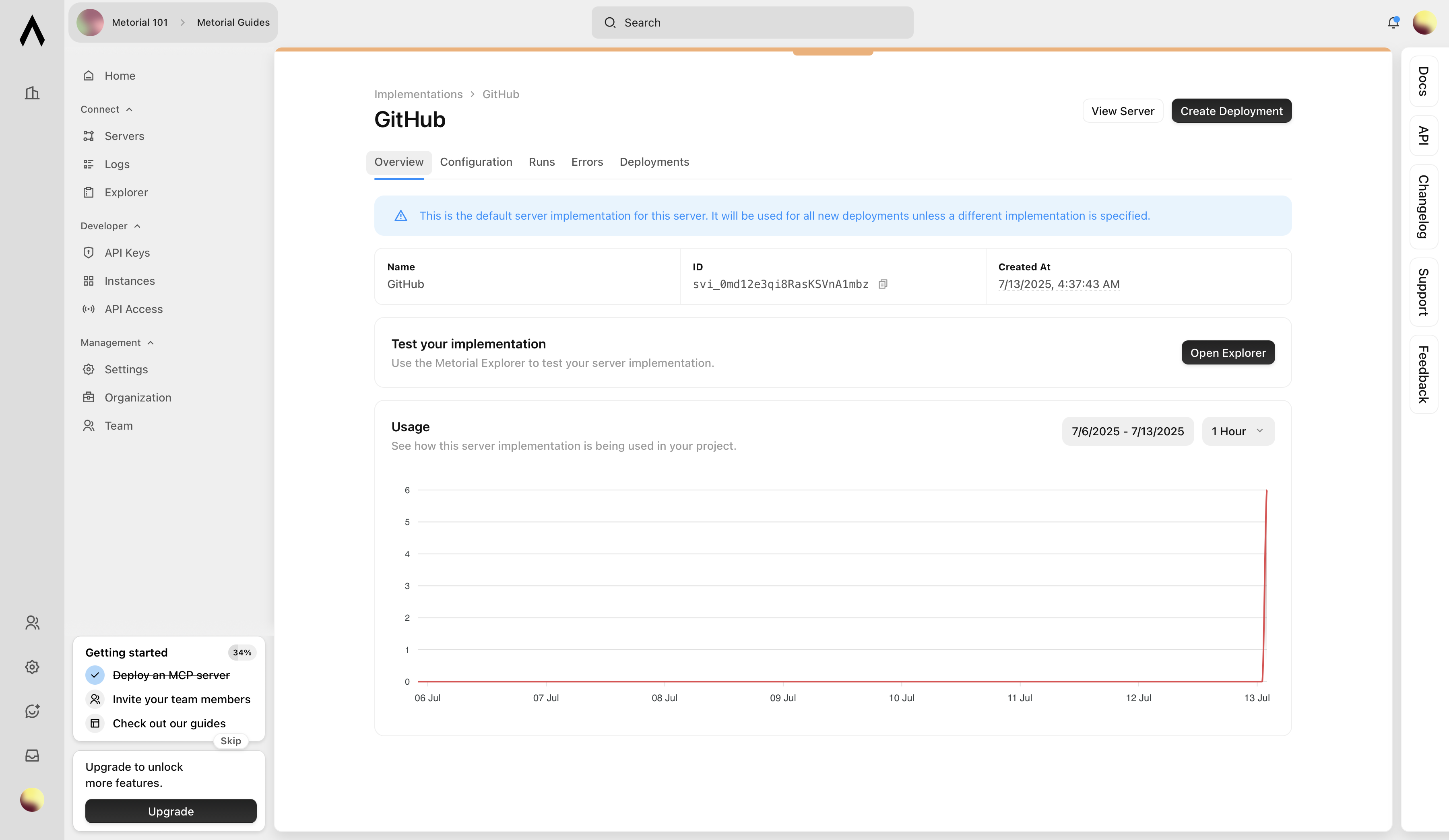
2
Open the Explorer
Click the Open Explorer button to open an interactive tool that lists all the MCP server’s capabilities.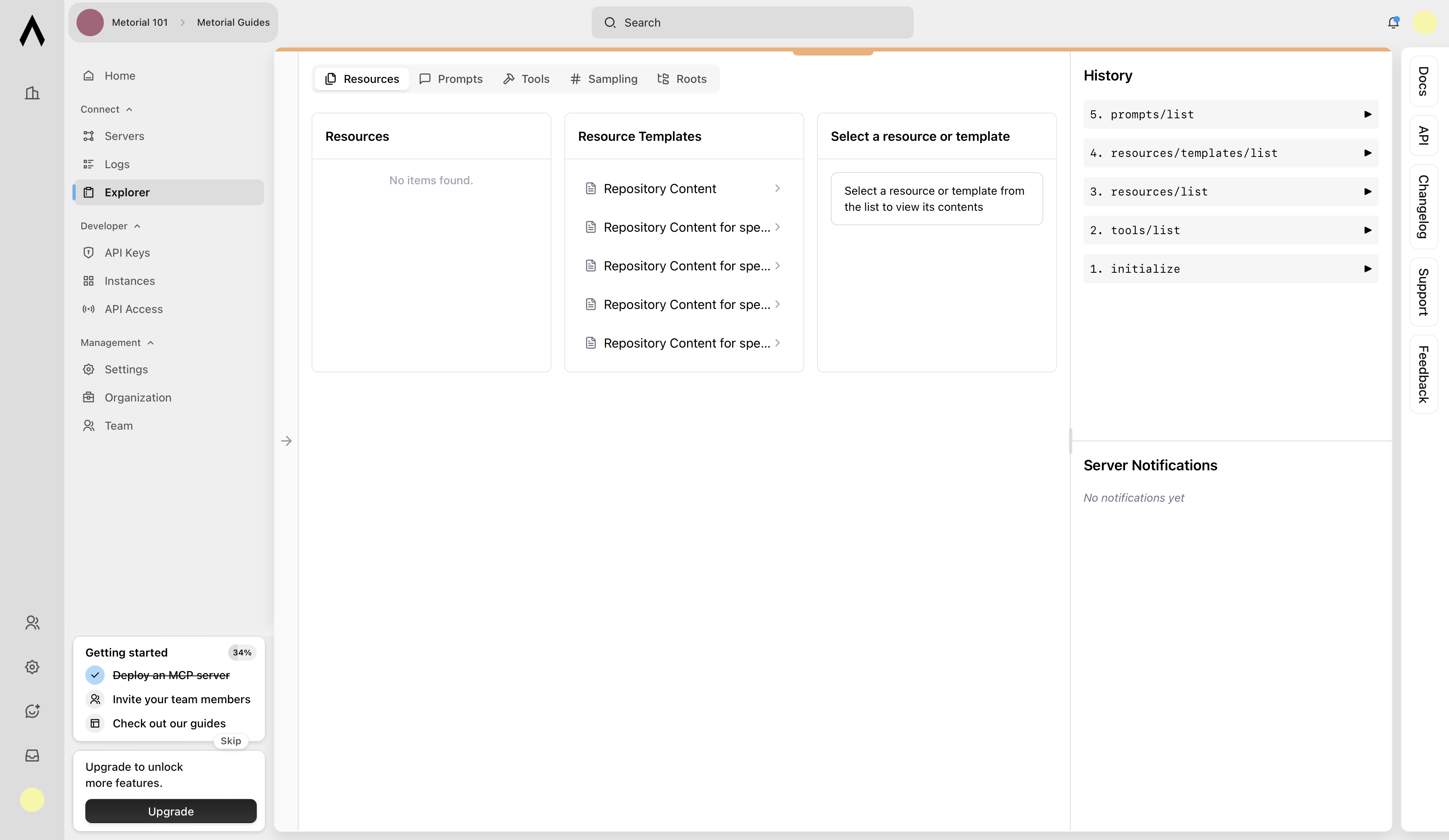
3
Test Server Capabilities
Select the Repository Content resource template from the available options. Enter the repository owner, repository name, and the file path you want to target. These settings define the list and method information that your AI integrations will invoke automatically.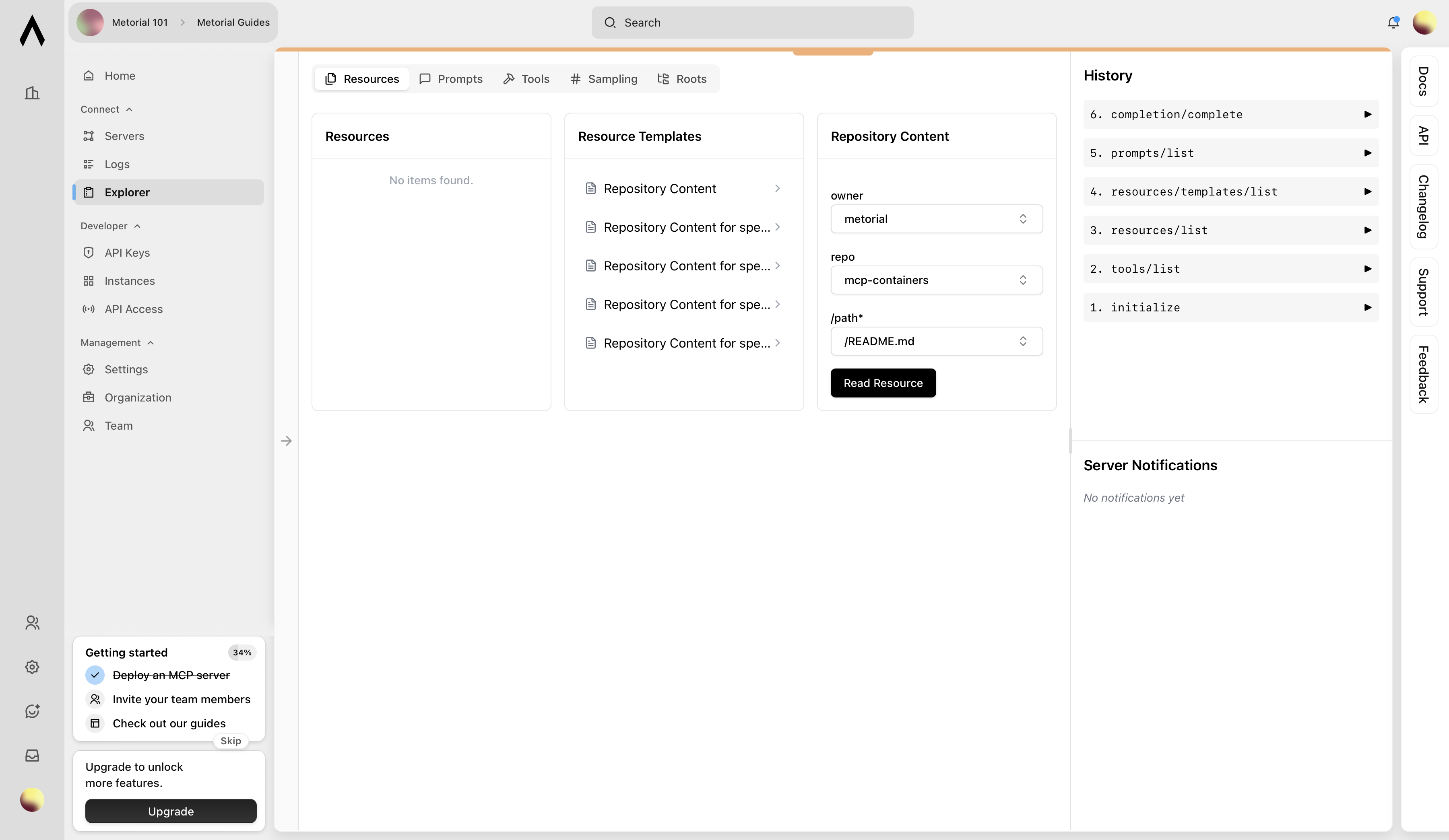
4
View Result
View the resulting response from the MCP server to see the data your AI integrations will consume.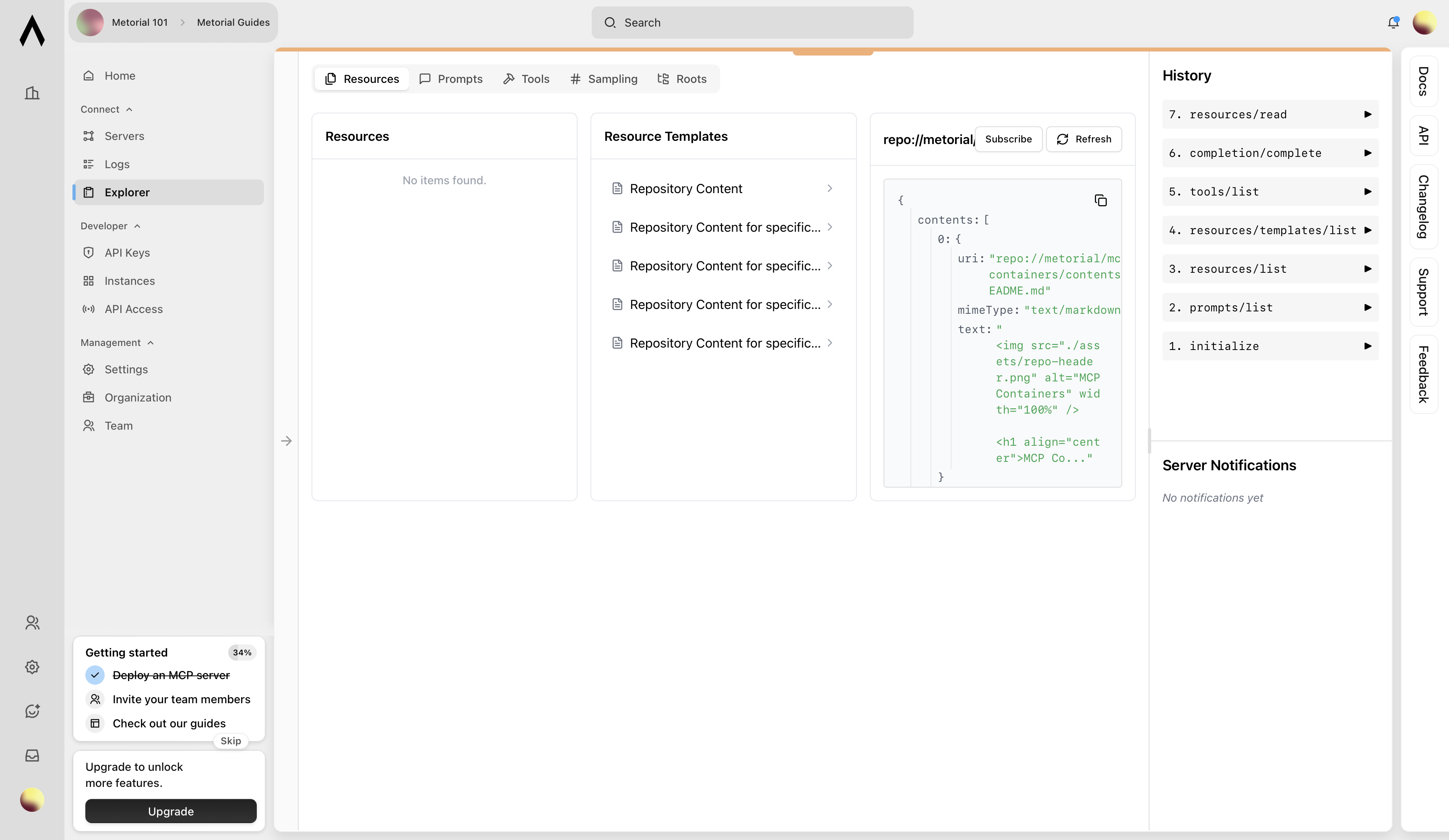
5
Explore Available Tool Calls
Navigate to the Tools section to browse available tool calls. Select the tool call you want to try out—here, it’s the
fork_repository call. With the GitHub MCP server and a properly scoped Personal Access Token, your AI integrations can invoke any of these calls.What’s Next?
🚀 You’ve successfully deployed and tested your first MCP server. Next, you’ll learn how to grant your AI integrations secure access to your MCP servers.Next Up: How to use an MCP server
Learn how to use a deployed MCP server using SDKs.